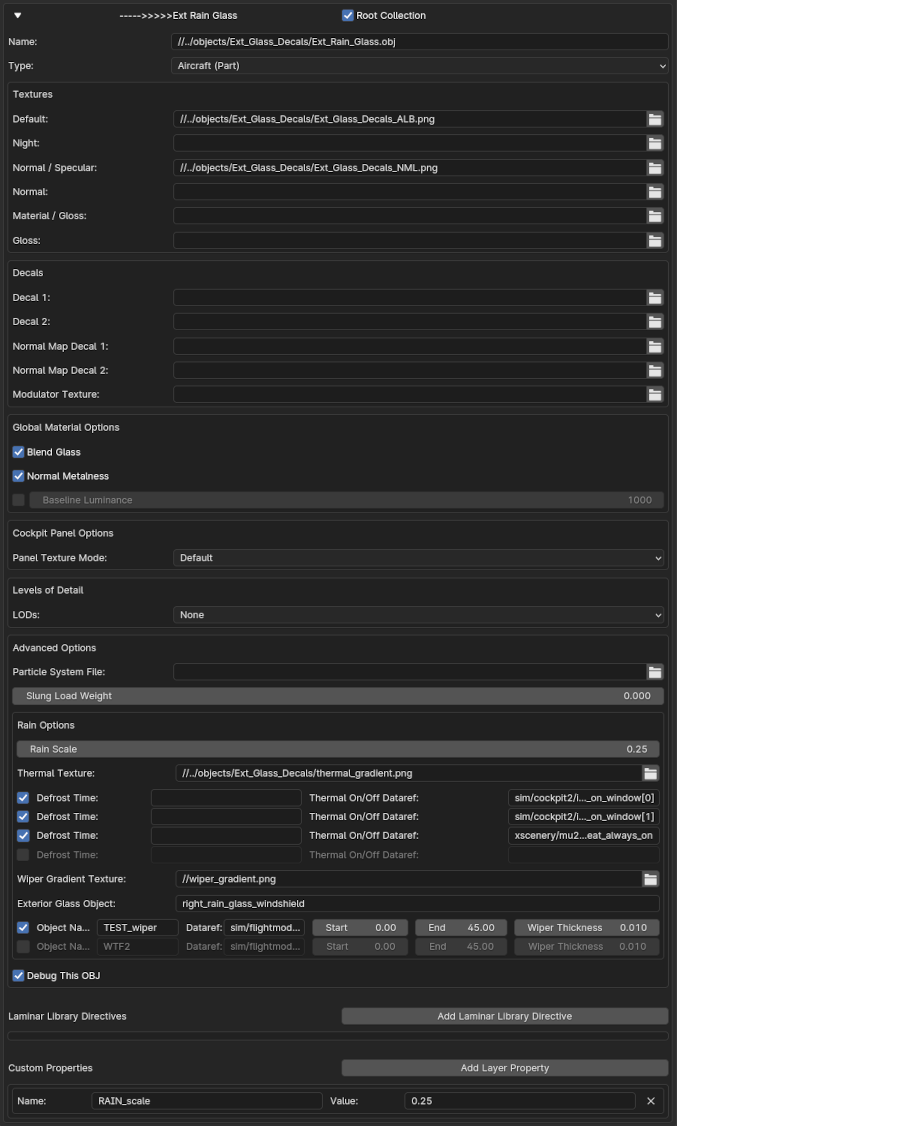
Scene Tab Settings
Greek letter Beta \(\beta\).
General
The Scene Tab X-Plane panel is one of the first UI panels you will work with when setting up an OBJ for export. It contains a flat list of entries for every Blender Collection you have in the Outliner, and listed in the same order. We informally refer to the settings in each entry as the Meta-Data Settings or OBJ Meta Data. When we say Meta-Data or Global settings, we are referring to this Blender tab.
After creating a Blender collection to export as an OBJ, the next step is usually to come to this panel and configure your OBJ filepath & filename as well as assign textures to the OBJ. An OBJ export filename is required, but texture names are not.
When you are ready to export out your OBJs, you will browse the Non-Exporting Collections List (currently labeled 'Other Collections' and select which collections you want to export. Once selected, those collections will move to the Exporting Collections List (currently labled Root Collections) and you can then hit the Export OBJs button to perform the actual export. If there are any problems with the export, then an Error message will appear and an Export Error Log with additional details will be generated, which you can refer to for problem solving.
Export Collections UI Browser
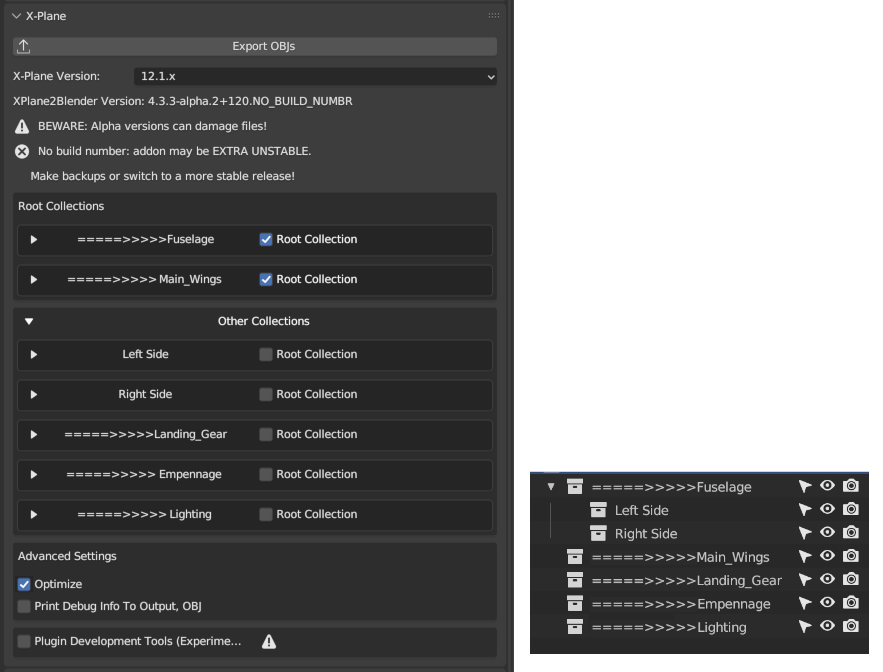
Meta-Data UI Browser
When any of the line entries in the Exporting and Non-Exporting list are expanded, then the OBJ Meta-Data Widgets for those entires are displayed. We frequently mix the terms OBJ Meta-Data and Global Properties, but what is the difference really? The meta-data is the data you enter in the XP2B widgets and Global Properties are the resulting entries in the OBJ file after export. An OBJ may have none or many Global Properties, depending on the meta-data you enter and checkboxes you select here.
See Example of Global Properties in the exported OBJ file.