Introduction
XPlane2Blender (XP2B) is an add-on for Blender® that allows you to export 3D models from Blender into X-Plane's OBJ file format for use with either X-Plane scenery or aircraft. XP2B started life as an importer of X-Plane geometry INTO Blender, hence the name, but quickly evolved to be a general purpose exporter instead, but the original name stuck.
XP2B is maintained by Laminar Research and is the de-facto standard tool for Laminar artists and 3rd party developers to export 3D assets from Blender to X-Plane. The latest version of XP2B is given in the home link above left, along with the latest version of Blender for which the scripts have been verified to work. This manual assumes you have a working knowledge of Blender 3D and some familiarity with X-Plane's OBJ file format.
How to Use This Manual
This manual is divided into three logical sections, navigable from the panel at left:
-
The section, UI REFERENCE presents general overviews of the various XP2B User Interface (UI) panels and settings scattered throughout and broadly describes what each UI/widget is used for via popup tooltips, many of which link to other parts of this manual. This section is appropriate for new users of XP2B who don't quite know where everything is or what everything is for and need to gain situational awareness of the UI. New users should read over this section first.
-
The section, WORKFLOWS is organized by application / objective. These links are the ones that have detailed instructions on using each XP2B widget setting. If you're comfortable with the XP2B UI layout but may have forgotten how to achieve something specific, this section will contain the info you need. These are the "bread and butter" links of this manual and will be the ones most commonly referenced by experienced users.
-
The section, APPENDIX presents additional reference information that is benefical to know when working with Blender, XP2B and OBJs in general. We recommend you look over these topics to get familiar with what's available in this section.
-
Finally, the SEARCH feature is also very handy for finding information quickly. We have endeavored to utilize phrases and words so that you may find the information you are looking for quickly.
NOTE
This manual utilizes lots of mouseover image hotspots and pop-up info boxes for convenient and quick referencing. Try moving the mouse cursor over images to discover any pop-up info that exist. Some hotspots link to other areas of the document, while others simply show a tooltip. The mouse cursor type will indicate whether or not the hotspot links to other areas.
Download XP2B
XP2B can be downloaded from its Github page HERE (or click image below). The latest release will always be accessible at the top of that page as illustrated below. Download the zip file beginning with "io_xplane2blender_... as shown below.
WARNING
There is NO need to unzip the package after download, Blender will install the add-on from its ZIP format.

Installation
XP2B is installed via Blender's Preferences UI, which you access through Blender's menu: Edit > Preferences. Select the Add-ons button on the left side (as shown below) to display Blender's add-on manager UI and then follow the three steps below to install.
-
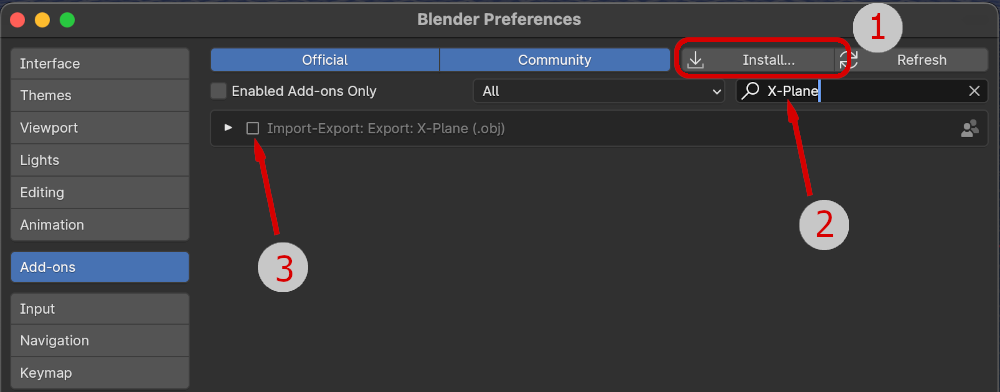
Click the Install button and select/ install the io_xplane2blender.... zip file you just downloaded. Blender will unzip the file and move all the contents to its default add-ons directory.
-
After installation, type "X-Plane" in the filter searchbox as shown below. This should display the XP2B script in the add-ons list. If the list is empty, then the script was not successfully installed for some reason, but this is the exception rather than the rule.
-
Check the box as shown below to enable the XP2B UI. Blender's UI should now display X-Plane Panels in the locations described in the next section, UI Orientation
Exporting Workflow
XP2B can export OBJs using two differing Export Methods. The method chosen generally depends on the nature of the work you're doing, whether scenery or aircraft. Each method is optimized for its intended application; however, either method may be used for scenery or aircraft.
Export Method 1 - Export by Collection
Export by Collection involves exporting one OBJ per Blender collection. This workflow is typically used for aircraft development, where you have a relatively limited number of objects that make up your aircraft and you need to turn collections on/off regularly as you work. Custom airport buildings are also typically created using this workflow for the same reasons. The ability to show/hide collections while you work and select which collections to export are the primary reason to use this workflow.
Export Method 2 - Export by Root/Parent Object
Export by Root/Parent Object involves using a top-level Parent Entity, usually a Blender empty element, and making all the entities to be exported children of that parent element. This workflow is typically used by scenery developers who create a larger number of smaller, discrete objects (e.g. 9 water towers, 10 radars, 8 tow trucks, 50 vehicles, 30 houses etc) and prefer to see/export all these objects at the same time, as well as create collections to group multiple OBJs of the same type.
The top level parent object for each exportable OBJ contains the meta-data that sets the global OBJ properties, i.e. name, textures, export locations, etc. The ability to see and export out a large number of objects quickly and frequently is the primary reason to use this workflow.
The workflows may be combined if desired. For example, a custom airport scenery project might use the collection method to organize and export all the terminal buildings and additionally use the Parent method to export out a library of discrete miscellaneous objects for that airport such as dumpsters, picnic tables, vehicles, cones, etc. With one operation, you can export out 100s of objects if you want to.
In either workflow, exported OBJ files are the final result; therefore, the two available XP2B panels to enter OBJ meta-data is exactly the same for collections as it is for parent objects, though these meta-data panels are located in differing areas of Blender.