Manipulators
General
Manipulators are Mesh Objects that function as 3D click spots in X-Plane. When a user clicks on a manipulator in sim, then either a dataref value is written to, or a command is executed. The value written, or command executed is dependent upon the manipulator parameters you configure in the manipulator UI panel for that Mesh Object.
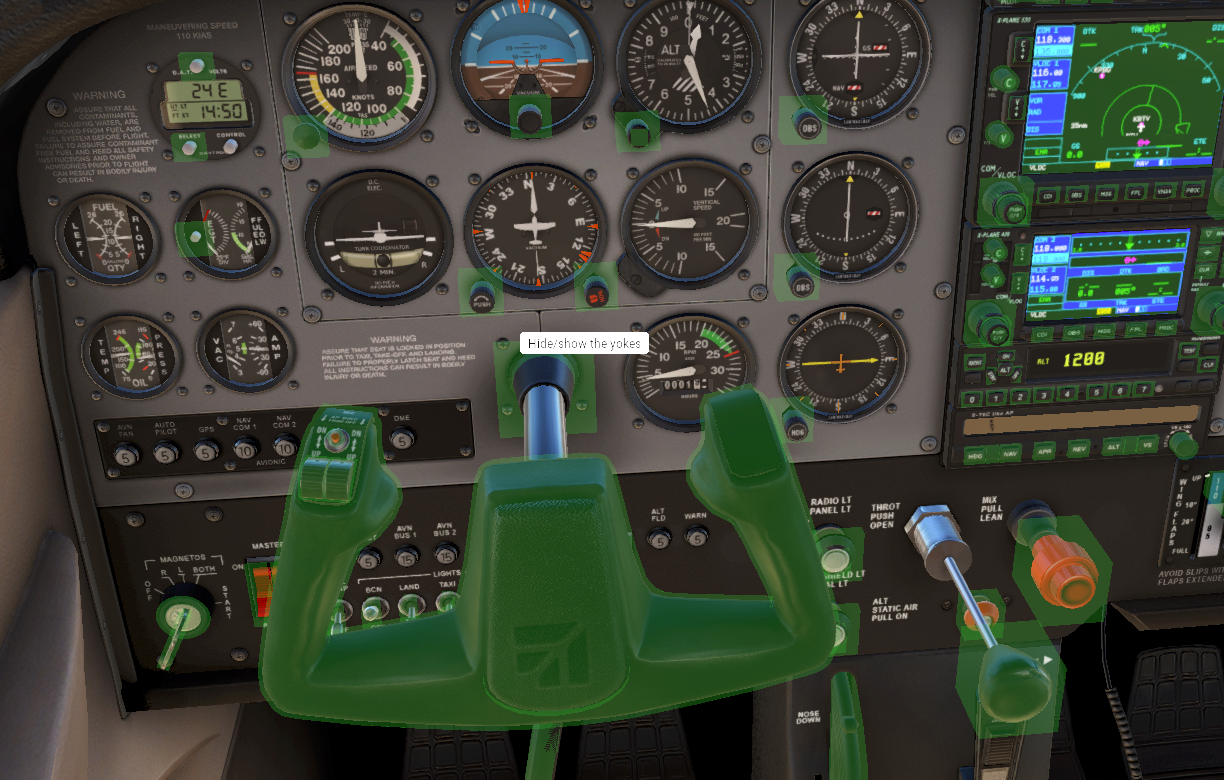
Manipulator polygons are created and placed in Blender, tagged as a manipulator via a checkbox, and then meta-data is input to configure each manipulator's behavior, cursor style and tooltip. If the user has enabled show instrument click regions and Show Instrument Descriptions in X-Plane, then the manipulator Mesh Objects look like so in sim:
Before proceeding any further, we first need to establish some nomenclature and concepts that are used frequently in this section, and each term means something quite specific in the context of manipulators. For for the VR folks, note that we generically use the term 'mouse' to mean a screen cursor.
Nomenclature
| Term | Description |
|---|---|
| Click | 2 distinct events: 1) Button down, 2) Button up. |
| Click-Hold | 3 distinct events: 1) Button down, 2) Button hold, 3) Button up. Cursor movement irrelevant. |
| Click-Drag | 3 distinct events: 1) Button down, 2) Mouse Drag, 3) Button up. |
| Actuate | The act of executing one of the above action sequences. |
| Drag-real-length | A cursor drag motion from a virtual point A to point B, in 3D aircraft dimensions. See Figure 1, below. |
| Drag-pixel-length | A cursor drag motion from point A to point B, in 2D (XY) pixels. See Figure 1. below. |
| Drag-direction | A click-drag motion in some direction only. Length of drag (in pixels) is irrelevant. |
When it comes to manipulators, consideration of the camera view is important in selecting the correct manipulator. The image below from a given camera angle illustrates the difference between "real units" vs "screen (pixel) units". Some manipulator meta-data is in real units, while others are in pixel units.
If we imagine the red dot as a ball we want the user to move from point A to point B along the aircraft coordinate system X-axis while dragging the mouse, then we'd naturally want to move the mouse cursor from A to B with this camera angle, and have the red dot move with it. There are multiple manipulators than can be used to move the red dot, but not all of them would keep the cursor position in sync with the dot motion, resulting in the most natural motion. Understanding real vs. pixel coordinates is important in selecting the proper manipulator and configuring your manipulator parameters. We discuss more about which are best to use in the Recommendations section below.
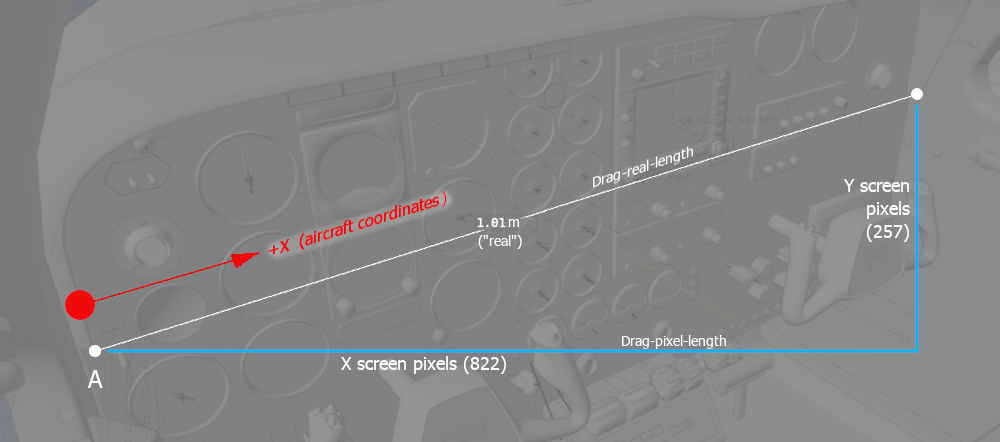 Figure 1. "Real" vs "Pixel" coordinates.
Cursor Types
Cursor types are set via a pulldown menu. Custom cursors are not supported. The following cursors may be selected from the pulldown list.
| Description | Icon |
|---|---|
| Four Arrows |  |
| Hand |  |
| Button |  |
| Rotate Small |  |
| Rotate Small Left |  |
| Rotate Small Right |  |
| Rotate Medium |  |
| Rotate Medium Left |  |
| Rotate Medium Right |  |
| Rotate Large |  |
| Rotate Large Left |  |
| Rotate Large Right |  |
| Up / Down |  |
| Down |  |
| Up |  |
| Left Right |  |
| Left |  |
| Right |  |
| Arrow |  |
Manipulator Types
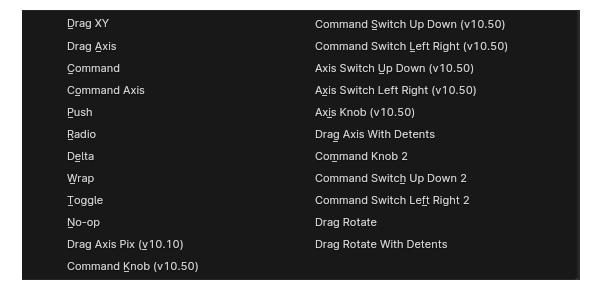
Select a Manip Type below for instructions on their setups. If you're not exactly sure which manipulator to select or which may be best for your application, then check out the Recommendations section below for suggestions depending on the type of control.
Drag XY
Drag XY Manipulator.
Drag Axis
Command
Command Axis
Push
Radio
Delta
Wrap
Toggle
No-op
Drag Axis Pix
Command Knob
Command Switch Up Down
Command Switch Left Right
Axis Switch Up Down
Axis Switch Left Right
Axis Knob
Drag Axis With Detents
Command Knob 2
Command Switch Up Down 2
Command Switch Left Right 2
Drag Rotate
Drag Rotate with Dentents
Recommendations
Buttons
- Momentary (Discrete event on button down, no hold functionality)
- Momentary (with hold functionality)
- Enable - Disable
Switches
- 2-position
- 3-position
- 2-position momentary (MOM)
- 3-position, ON-OFF-ON
- 3-position, OFF-ON-MOM
- N-position rotary
- Switch guards
Rotational Levers
- Quadrant Lever - no detents
- Quadrant Lever - w/detents
Linear Levers
Knobs
- Continuous Encoder
- Continuous Rheostat
- Finite Range
- On-off Rheostat
Advanced Manipulations
- Lever-Lock (safety) switches
- Detents
- Momentary Switches